Small tools. A better photo workflow.
Good photos.
Ready for the menu.
Resize, compress and prepare your food photos with MenuPrep. Two focused Windows tools, with all image processing on your PC.
- Windows 10 / 11 · x64
- Portable EXE
- Works offline
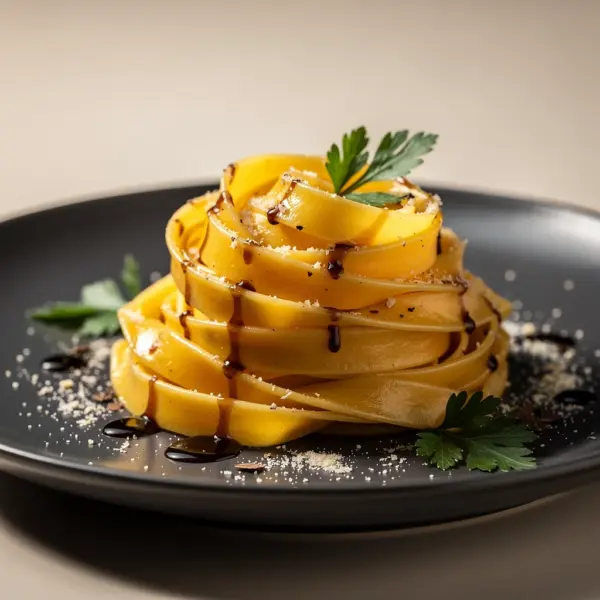 Your photo. Your finishing touch.
Choose your output
The right tool for the final file.
MenuPrep JPEG
Prepare compact photos for menus, websites and delivery listings.
- Adjust JPEG quality and set a target file size
- Resize, crop or add a clean white border
- Process batches and keep your originals
MenuPrep PNG
Prepare transparent assets and clean cutouts for your next layout.
- Preserve transparency with Fit or Crop
- Resize with lossless PNG encoding afterward
- Remove backgrounds with optional offline AI*
*AI background removal requires Windows 11 and runs on your CPU. Review cutout edges before publishing.
Both editions accept JPEG, PNG, WebP, BMP and TIFF images.
Signed by Crespo Studios LLCGlobalSign code-signing certificate · Timestamped release
A quick comparison
Same workflow. Different finish.
| What matters | JPEG edition | PNG edition |
|---|---|---|
| Output format | JPEG | PNG |
| File size control | Quality and target size* | Lossless PNG encoding |
| Transparent areas | Flattened onto white | Preserved with Fit / Crop |
| Resize, crop and batch processing | Included | Included |
*A target is a best-effort limit; some images may remain larger. Resizing changes image pixels in either edition. White padding flattens transparent areas onto white, including AI cutouts.
Your originals stay intact. Results are saved as new files.
Less metadata leaves your PC. EXIF and GPS metadata are removed from exports.
From download to export
Open it. Add photos. Get on with your day.
Keep the EXE
Download the edition you need into a folder you can write to. No installer is required.
Set your output
Open the app, add images and choose dimensions, a resize mode and an output folder.
Process your batch
Save the finished images, then keep MenuPrep in the system tray for the next batch.
What does “portable” mean here?
Each edition runs from one EXE without installation. It uses Windows system components and does not extract DLLs or its embedded AI model. Preferences are stored in a small INI file beside the EXE.
Are my photos uploaded anywhere?
No. Image processing, including optional AI background removal, happens locally. No cloud account or external image-processing service is needed.
Why is each download about 177 MB?
The EXE includes the background-removal AI model. It loads directly into memory, so no model download or unpacking is needed. Basic image processing works on Windows 10 and 11; AI removal requires Windows 11.
Are the presets approved by delivery platforms?
The presets are general image sizes. MenuPrep is an independent photo preparation tool; check the current image requirements of the service where you plan to upload.